
What's inside
- Best Data Transfer Cable for Desktops: Quick Comparison Table
- What Is a Data Transfer Cable for Desktops?
- Best Data Transfer Cable for Desktops Reviewed
- Buying Guide: How to Choose the Best Data Transfer Cable for Desktops
- How to Transfer Files Between Desktops with a Data Transfer Cable
- Which Best Data Transfer Cable for Desktops Should You Buy?
- Frequently Asked Questions About the Best Data Transfer Cable for Desktops
As an Amazon Associate I earn from qualifying purchases. This post may contain affiliate links at no extra cost to you.
The best data transfer cable for desktops is the one that matches the ports on your desktop, the speed you need for the files you move, and the job you are doing. A data transfer cable is not just a charging cable. A charging cable may only carry power, while a data transfer cable carries files, photos, videos, and in some cases, a whole drive clone. Using the wrong cable can mean a transfer that takes hours instead of minutes, a drive that does not show up, or a cable that cannot move data at all.
For most desktop users, a USB-C to USB-C cable with USB 3.2 Gen 2 or USB4 speed, or a USB-A to USB-C cable with USB 3.2 speed, is a good starting point. That speed can move a large video file, a photo library, or a game folder in minutes, not hours. A PC-to-PC transfer cable with software is a different tool, designed to move files, settings, and user accounts from an old desktop to a new one, without a network or a cloud upload.
At techcats.net, we focus on tech gadgets. For this guide to the best data transfer cable for desktops in 2026, we compared current cables that are widely sold, designed for data transfer, and suitable for a desktop user who moves files between a desktop and a laptop, an external drive, or another desktop. We looked at connector type, USB version, speed, length, power delivery, and price. Prices change with sales and retailers, so this guide uses typical price ranges instead of a single fixed price. Speed, length, and power figures are manufacturer listings, and real speed depends on your desktop ports, your drive, your cable length, and the file size.
Desktop tip: check the ports on the back and front of your desktop before you buy. A USB-C port may be USB 3.2, USB4, or Thunderbolt, and each has a different speed. A USB-A port may be USB 2.0, USB 3.0, or USB 3.2, and the colour of the port is not always a reliable guide. Look for the USB logo, check your desktop manual, or check Device Manager on Windows or System Information on Mac to confirm the port speed.
Our Top Picks
Best Data Transfer Cable for Desktops: Quick Comparison Table
The table below compares seven data transfer cables for desktops. Connector is the connector type, where given. USB version is the USB version, where given. Speed is the maximum data speed, where given. Length is the cable length, where given. Power is the power delivery, where given. Best for is a note on what the cable is best for, such as desktop to laptop transfer or external drive use, where given. Price is the typical range, and rating is our editorial score based on speed, compatibility, build, length options, and value for desktop use.
| Data Transfer Cable for Desktops | Connector | USB Version | Max Speed | Length | Power Delivery | Best For | Typical Price Range | Our Rating |
|---|---|---|---|---|---|---|---|---|
| Anker 765 USB-C to USB-C Cable 140W | USB-C to USB-C | USB4 | 40 Gbps | 3 ft / 6 ft | 140 W | Best overall, desktops | $25 – $35 | 4.9 / 5 |
| Cable Matters USB4 Cable 40Gbps | USB-C to USB-C | USB4 | 40 Gbps | 3 ft / 6 ft | 240 W | Best for Cable Matters, USB4 | $20 – $30 | 4.8 / 5 |
| Anker 515 USB-A to USB-C Cable 10Gbps | USB-A to USB-C | USB 3.2 Gen 2 | 10 Gbps | 3 ft / 6 ft | 60 W | Best for Anker, USB-A desktops | $12 – $18 | 4.8 / 5 |
| Plugable USB 3.0 Transfer Cable | USB-A to USB-A | USB 3.0 | 5 Gbps | 6 ft | Not for charging | Best for Plugable, PC to PC | $30 – $40 | 4.7 / 5 |
| UGREEN USB-C to USB-C Cable 10Gbps | USB-C to USB-C | USB 3.2 Gen 2 | 10 Gbps | 3 ft / 6 ft | 100 W | Best for UGREEN, external drives | $10 – $15 | 4.7 / 5 |
| Belkin USB-C to USB-C Cable 10Gbps | USB-C to USB-C | USB 3.2 Gen 2 | 10 Gbps | 3 ft / 6 ft | 100 W | Best budget, Belkin | $12 – $18 | 4.6 / 5 |
| StarTech.com USB-C to USB-C Cable 20Gbps | USB-C to USB-C | USB 3.2 Gen 2×2 | 20 Gbps | 3 ft / 6 ft | 100 W | Best for StarTech, 20Gbps | $25 – $35 | 4.6 / 5 |
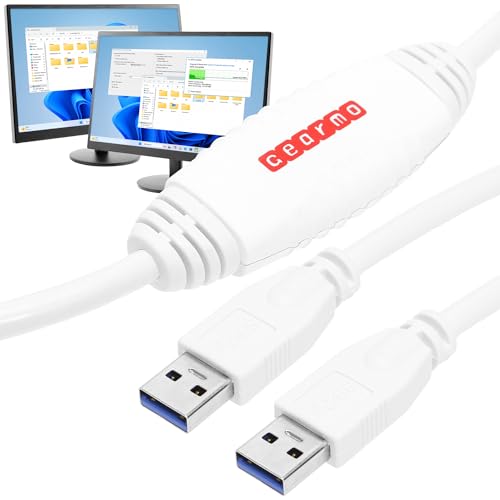
Gearmo PC to PC Data Transfer Cable - 6ft, Unlimited Uses, Built-in Software, No Installation - High Speed USB Data Transfer Between Computers - Supports Windows 11/10/8/7


As an Amazon Associate we earn from qualifying purchases. Product prices and availability are accurate as of the date/time indicated.
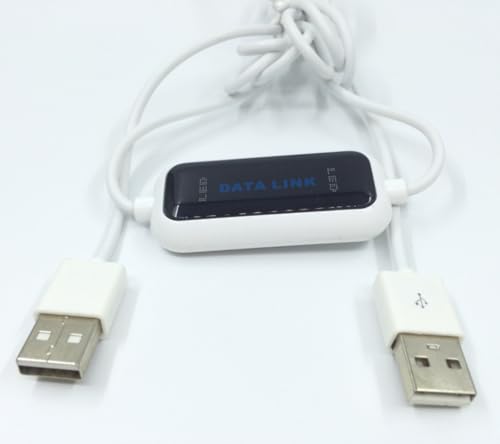
ELFJMZP USB File Transfer Cable 1.5m - Windows Plug and Play No Driver, Built-in File Manager, PC to PC Data Sync Only, Does NOT Support Keyboard/Mouse Sharing
As an Amazon Associate we earn from qualifying purchases. Product prices and availability are accurate as of the date/time indicated.
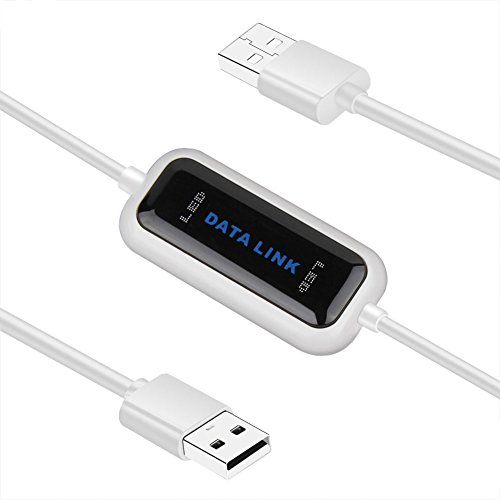
USB 2.0 High Speed Laptop USB to USB PC Data File Transfer Cable Link Direct Copy Between 2 Computers for XP,Vista,Windows7,8 (32/64 bit),win10


As an Amazon Associate we earn from qualifying purchases. Product prices and availability are accurate as of the date/time indicated.
Note: Speed figures are manufacturer listings for the cable’s maximum speed, and a cable that lists 40 Gbps will only reach that speed if both devices and both ports support USB4 or Thunderbolt 4. Always check your desktop’s port speed, your drive’s speed, and the cable’s USB version, and confirm the current price with the retailer.
What Is a Data Transfer Cable for Desktops?
A data transfer cable for desktops is a cable that moves files between two devices, or between a desktop and an external drive, at a speed that matches the USB version. It has two connectors, usually USB-C to USB-C, USB-A to USB-C, or USB-A to USB-A, and it has wires inside that carry data, not just power. A cable that is only for charging may look the same on the outside, but it may not have the data wires, or it may only support USB 2.0 speed at 480 Mbps, which is slow for large files.
For desktops, a data transfer cable is used in three main ways. First, to connect a desktop to an external hard drive or SSD, to move photos, videos, games, and backups. Second, to connect a desktop to a laptop, to move files directly without a network or a cloud upload. Third, to connect a desktop to a phone, a tablet, or a camera, to move photos and videos to the desktop for editing.
A PC-to-PC transfer cable is a special type. It has a chip in the middle that lets two computers talk to each other, and it usually comes with software that helps you move files, user accounts, and settings from an old desktop to a new one. A regular USB-C to USB-C cable will not do that job on its own, because two computers need software to share files over USB.
Best Data Transfer Cable for Desktops Reviewed
1. Anker 765 USB-C to USB-C Cable 140W – Best Data Transfer Cable for Desktops Overall
The Anker 765 USB-C to USB-C Cable 140W is our top pick because it offers a USB4 version, a maximum speed of 40 Gbps, a length of 3 feet or 6 feet, and a power delivery of 140 watts, for a typical price of $25 to $35. It has a braided nylon design, a USB-IF certification in many versions, and a design that is made for high-speed data and charging.
Anker designs the 765 with a focus on speed and durability. The 40 Gbps speed can move a 10 GB video file in a few seconds when both devices support USB4, and the 140-watt power delivery can charge a laptop while it transfers files. The braided cable resists tangling, and the connectors are designed to last through many plug-ins.
The main limitation is that you need USB4 or Thunderbolt 4 ports to get 40 Gbps. On a desktop with USB 3.2 ports, the cable will work, but at a slower speed. Choose the Anker 765 if you want the best overall data transfer cable for desktops, you have a USB4 desktop or laptop, and you want a cable that can also charge a laptop at 140 watts.
2. Cable Matters USB4 Cable 40Gbps – Best Data Transfer Cable for Desktops for USB4
The Cable Matters USB4 Cable 40Gbps is a USB-C to USB-C cable with a USB4 version, a maximum speed of 40 Gbps, a length of 3 feet or 6 feet, and a power delivery of 240 watts, for a typical price of $20 to $30. It has a flexible design, a USB-IF certification in many versions, and a clear marking that shows it is a USB4 cable.
Cable Matters designs this cable with a focus on USB4 compatibility. The 40 Gbps speed is the same as the Anker 765, but the 240-watt power delivery is higher, which is useful for a laptop that needs more power to charge. The cable also supports video output in many versions, so it can connect a desktop to a monitor through USB-C, though you should check your desktop’s video support.
The main limitation is length. A 6-foot USB4 cable may not reach 40 Gbps as reliably as a 3-foot cable, because longer cables can lose signal at high speed. Choose the Cable Matters USB4 if you want a Cable Matters USB4 cable, you want 240-watt charging, and you have USB4 ports on your desktop.
3. Anker 515 USB-A to USB-C Cable 10Gbps – Best Data Transfer Cable for Desktops for USB-A Desktops
The Anker 515 USB-A to USB-C Cable 10Gbps is a USB-A to USB-C cable with a USB 3.2 Gen 2 version, a maximum speed of 10 Gbps, a length of 3 feet or 6 feet, and a power delivery of 60 watts, for a typical price of $12 to $18. It has a braided design, a USB-A connector for older desktops, and a USB-C connector for a laptop, a phone, or an external drive.
Anker designs the 515 with a focus on older desktops. Many desktops still have USB-A ports on the front and back, and a USB-A to USB-C cable lets you connect a USB-C external drive or a USB-C laptop to a USB-A desktop at 10 Gbps, which is 20 times faster than USB 2.0. The 60-watt power delivery can charge a phone or a small laptop, though it is not enough for a large laptop.
The main limitation is speed. At 10 Gbps, it is slower than a USB4 cable at 40 Gbps, but it is still fast enough for most file transfers. Choose the Anker 515 if you want an Anker cable for a USB-A desktop, you want a 10 Gbps speed, and you connect a USB-C drive or laptop to an older desktop.
4. Plugable USB 3.0 Transfer Cable – Best Data Transfer Cable for Desktops for PC to PC
The Plugable USB 3.0 Transfer Cable is a PC-to-PC transfer cable with a USB-A to USB-A connector, a USB 3.0 version, a maximum speed of 5 Gbps, and a length of 6 feet, for a typical price of $30 to $40. It has a chip in the middle, a software download for Windows, and a design that lets you move files between two Windows desktops or laptops.
Plugable designs this cable with a focus on moving to a new PC. The software lets you select files, folders, and user accounts on the old PC, and transfer them to the new PC, without a network, a cloud upload, or an external drive. The 5 Gbps speed is faster than a network transfer in many homes, and the 6-foot length gives you room to place two desktops side by side.
The main limitation is that it is not a regular USB cable. You cannot use it to connect a desktop to an external drive, and it is not for charging. It also needs Windows software, so it may not work for a Mac to PC transfer. Choose the Plugable Transfer Cable if you want a PC-to-PC cable, you are moving from an old Windows desktop to a new one, and you want software that helps you move files and settings.
5. UGREEN USB-C to USB-C Cable 10Gbps – Best Data Transfer Cable for Desktops for External Drives
The UGREEN USB-C to USB-C Cable 10Gbps is a USB-C to USB-C cable with a USB 3.2 Gen 2 version, a maximum speed of 10 Gbps, a length of 3 feet or 6 feet, and a power delivery of 100 watts, for a typical price of $10 to $15. It has a braided design, a USB-IF certification in many versions, and a design that is made for external SSDs and hard drives.
UGREEN designs this cable with a focus on value and speed. The 10 Gbps speed can move a large photo library or a game folder in minutes, and the 100-watt power delivery can charge a laptop while it transfers files. The cable is a good choice for a desktop user who connects an external SSD to a desktop for editing, backup, or gaming.
The main limitation is that it is not a USB4 cable, so it cannot reach 40 Gbps, even on a USB4 desktop. Choose the UGREEN cable if you want a UGREEN cable for external drives, you want a low price for a 10 Gbps cable, and you have a USB-C desktop or laptop.
6. Belkin USB-C to USB-C Cable 10Gbps – Best Budget Data Transfer Cable for Desktops
The Belkin USB-C to USB-C Cable 10Gbps is a USB-C to USB-C cable with a USB 3.2 Gen 2 version, a maximum speed of 10 Gbps, a length of 3 feet or 6 feet, and a power delivery of 100 watts, for a typical price of $12 to $18. It has a braided design in many versions, a USB-IF certification, and a warranty that is longer than many budget cables.
Belkin designs this cable with a focus on reliability and warranty. The 10 Gbps speed is enough for most desktop file transfers, the 100-watt power delivery can charge a laptop, and the cable has a sturdy connector that resists bending. Belkin also offers a warranty that can help if the cable fails in normal use.
The main limitation is price for the speed. At $12 to $18, it is slightly more expensive than the UGREEN cable, though it offers a similar speed. Choose the Belkin cable if you want a Belkin cable, you want a longer warranty, and you want a 10 Gbps cable for a desktop.
7. StarTech.com USB-C to USB-C Cable 20Gbps – Best Data Transfer Cable for Desktops for 20Gbps
The StarTech.com USB-C to USB-C Cable 20Gbps is a USB-C to USB-C cable with a USB 3.2 Gen 2×2 version, a maximum speed of 20 Gbps, a length of 3 feet or 6 feet, and a power delivery of 100 watts, for a typical price of $25 to $35. It has a durable design, a USB-IF certification in many versions, and a marking that shows it is a 20 Gbps cable.
StarTech.com designs this cable with a focus on professional use. The 20 Gbps speed is twice as fast as a 10 Gbps cable, which is useful if you move large video files, a drive clone, or a game library between a desktop and an external SSD that supports 20 Gbps. The cable is a good choice for a video editor or a gamer who needs faster transfers than a standard USB 3.2 cable.
The main limitation is compatibility. A 20 Gbps cable needs a USB 3.2 Gen 2×2 port to reach 20 Gbps, and many desktops only have USB 3.2 Gen 2 ports at 10 Gbps, so the cable will work at a slower speed. Choose the StarTech.com cable if you want a StarTech.com cable, you have a USB 3.2 Gen 2×2 port, and you want a 20 Gbps speed for large files.
Buying Guide: How to Choose the Best Data Transfer Cable for Desktops
Before you buy, think about what ports your desktop has, what speed you need, how long the cable needs to be, whether you need power delivery, and how much you want to spend. A cable that is perfect for a USB4 desktop may not be the best choice for an older USB-A desktop, and a cable that is perfect for an external SSD may not be the best choice for a PC-to-PC transfer. The six points below cover the decisions that matter most for a data transfer cable for desktops.
1. Connector Type: USB-C to USB-C vs USB-A to USB-C vs USB-A to USB-A
Connector type is the first decision. A USB-C to USB-C cable is best for a modern desktop with USB-C ports, a laptop with USB-C, and an external drive with USB-C. A USB-A to USB-C cable is best for an older desktop with USB-A ports, a USB-C external drive, or a USB-C laptop. A USB-A to USB-A cable is usually a PC-to-PC transfer cable, not a regular data cable, because two USB-A ports cannot talk to each other without a chip in the middle.
Choose a USB-C to USB-C cable if your desktop has USB-C ports, you want the fastest speed, and you connect a USB-C drive or laptop. Choose a USB-A to USB-C cable if your desktop only has USB-A ports, you want a 10 Gbps speed, and you connect a USB-C device. Choose a USB-A to USB-A transfer cable only if you are moving files from one Windows PC to another, and you want software that helps you move files and settings.
2. Speed: 5 Gbps vs 10 Gbps vs 20 Gbps vs 40 Gbps, and Your Ports
Speed is the second decision. Speed is measured in gigabits per second, and it tells you how fast the cable can move data. USB 2.0 is 480 Mbps, USB 3.0 is 5 Gbps, USB 3.2 Gen 2 is 10 Gbps, USB 3.2 Gen 2×2 is 20 Gbps, and USB4 is 40 Gbps. A faster cable can move a large file in less time, but only if both devices and both ports support that speed.
Choose a 5 Gbps cable if you only move small files, you have an older desktop, and you want the lowest price. Choose a 10 Gbps cable if you move photos, videos, and games, you have a USB 3.2 desktop, and you want a good balance of speed and price. Choose a 20 Gbps cable if you move large video files and you have a USB 3.2 Gen 2×2 port. Choose a 40 Gbps cable only if you have USB4 or Thunderbolt 4 ports, you move very large files, and you want the fastest speed available.
3. Length: 3 Feet vs 6 Feet, and Signal Loss
Length is the third decision. A 3-foot cable is best for a desktop and an external drive on the same desk, because it is short, it has less signal loss, and it is less likely to tangle. A 6-foot cable is best if your desktop is under a desk, your external drive is on a shelf, or you need to connect two desktops side by side.
Choose a 3-foot cable if your devices are close together, you want the fastest speed, and you do not need extra length. Choose a 6-foot cable if your desktop is far from your drive or laptop, you need room to move, and you accept a slightly higher risk of signal loss at high speed. Do not buy a very long cable for a high-speed transfer, because a long USB4 cable may not reach 40 Gbps as reliably as a short one.
4. Power Delivery: 60 W vs 100 W vs 140 W vs 240 W, and Charging
Power delivery is the fourth decision. Power delivery is measured in watts, and it tells you how much power the cable can carry to charge a device while it transfers data. A 60-watt cable can charge a phone or a small laptop, a 100-watt cable can charge most laptops, a 140-watt cable can charge a larger laptop, and a 240-watt cable can charge a high-power laptop.
Choose a 60-watt cable if you only charge a phone, you have an older desktop, and you do not need to charge a laptop. Choose a 100-watt cable if you charge a laptop while you transfer files, you want a good balance of power and price, and you have a USB-C laptop. Choose a 140-watt or 240-watt cable only if you have a laptop that needs more than 100 watts to charge, you have a USB4 desktop, and you want to charge while you transfer. Check your laptop’s charger wattage in the manual, and choose a cable that matches it.
5. PC-to-PC vs Drive Transfer: Regular Cable vs Transfer Cable with Software
PC-to-PC vs drive transfer is the fifth decision. A regular USB-C to USB-C or USB-A to USB-C cable can connect a desktop to an external drive, a phone, or a camera, but it cannot directly move files between two computers without software or a network. A PC-to-PC transfer cable, such as the Plugable USB 3.0 Transfer Cable, has a chip and software that lets two Windows PCs share files directly.
Choose a regular data transfer cable if you connect a desktop to an external drive, a phone, or a camera, and you move files by dragging and dropping in File Explorer or Finder. Choose a PC-to-PC transfer cable if you are moving from an old desktop to a new one, you want to move user accounts and settings, and you do not want to use a network or a cloud upload. Do not use a regular USB-A to USB-A cable to connect two PCs, because it can damage the ports.
6. Price, Total Cost, and Choosing a Cable on a Budget
Price ranges in this guide run from about $10 to $40 for a data transfer cable for desktops, depending on speed, length, and brand. A budget cable at $10 to $18, such as the UGREEN or Anker 515, is enough for most desktop users who need a 10 Gbps speed. A mid-price cable at $20 to $35, such as the Cable Matters USB4 or Anker 765, offers a 40 Gbps speed for USB4 desktops. A PC-to-PC cable at $30 to $40, such as the Plugable Transfer Cable, offers software for moving to a new PC.
Consider total cost as well as price. A cable that costs $12 and needs to be replaced in a year because it breaks may cost more in total than a cable that costs $25 and lasts for three years. Budget for a cable, and if you need it, a second cable for a different port, not just one cable. Do not buy the cheapest cable if it only supports USB 2.0 speed, and do not buy the most expensive cable if your desktop only has USB 3.0 ports. A cable that matches your desktop’s ports, your speed needs, and your length needs will help you move files faster and more reliably than a cable that is cheap but slow, or expensive but too fast for your desktop.
How to Transfer Files Between Desktops with a Data Transfer Cable
Transferring files between desktops with a data transfer cable starts with checking the ports on both desktops, choosing a cable that matches those ports, and connecting the cable to both devices. For a desktop to an external drive, plug the cable into the desktop and the drive, wait for the drive to show up in File Explorer or Finder, then drag and drop files.
For a PC-to-PC transfer, plug the Plugable cable into both PCs, install the software from Plugable’s website, and follow the software’s steps to select files and folders on the old PC and transfer them to the new PC. For a desktop to a laptop with a USB-C cable, you may need to use a network, a cloud service, or a file sharing app, because a regular USB-C cable alone does not let two computers share files without software.
Which Best Data Transfer Cable for Desktops Should You Buy?
If you want the best data transfer cable for desktops, buy the Anker 765 USB-C to USB-C Cable 140W. It costs $25 to $35, it offers a USB4 version, a maximum speed of 40 Gbps, and a power delivery of 140 watts, which is the best balance for most desktop users with a USB4 desktop.
If you want a Cable Matters USB4 cable, buy the Cable Matters USB4 Cable 40Gbps. If you want an Anker cable for a USB-A desktop, buy the Anker 515 USB-A to USB-C Cable 10Gbps. If you want a PC-to-PC cable, buy the Plugable USB 3.0 Transfer Cable. If you want a UGREEN cable for external drives, buy the UGREEN USB-C to USB-C Cable 10Gbps. If you want a Belkin cable, buy the Belkin USB-C to USB-C Cable 10Gbps. If you want a StarTech.com cable for 20 Gbps, buy the StarTech.com USB-C to USB-C Cable 20Gbps.
All seven cables in this guide are currently sold, designed for data transfer, and suitable for a desktop user who moves files between a desktop and a laptop, an external drive, or another desktop. Pick the one that matches your desktop’s ports, your speed needs, your cable length, and your budget, and always check your port speed, use a short cable for high-speed transfers, and back up your files before a large transfer.
Disclosure: techcats.net may earn a commission from purchases made through links on this page, at no extra cost to you. Prices listed are typical ranges and can vary by retailer and sale. Speed, length, and power figures are manufacturer claims and can vary by model. Always check your desktop’s port speed and your device’s compatibility before you buy, and follow the manufacturer’s instructions for use.
Frequently Asked Questions About the Best Data Transfer Cable for Desktops
What is the best data transfer cable for desktops?
What is the best data transfer cable for desktops? In most cases, the Anker 765 USB-C to USB-C Cable 140W is best overall, because it costs $25 to $35, it offers a USB4 version, a maximum speed of 40 Gbps, and a power delivery of 140 watts. The Cable Matters USB4 cable is best if you want 240-watt charging, while the Anker 515 is best if your desktop only has USB-A ports.
Can I use a USB-C cable to transfer files between two desktops?
Can you use a USB-C cable to transfer files between two desktops? In most cases, a regular USB-C to USB-C cable alone will not let two desktops share files, because two computers need software or a network to share files over USB. You can use a PC-to-PC transfer cable, such as the Plugable USB 3.0 Transfer Cable, with its software, or you can use a network, a cloud service, or an external drive to move files between two desktops. Check your operating system and your software before you buy.
What is the fastest data transfer cable for a desktop?
What is the fastest data transfer cable for a desktop? In most cases, a USB4 cable at 40 Gbps is the fastest widely sold data transfer cable for a desktop, such as the Anker 765 or Cable Matters USB4 cable. A USB 3.2 Gen 2×2 cable at 20 Gbps is the next fastest, while a USB 3.2 Gen 2 cable at 10 Gbps is fast enough for most users. The actual speed depends on your desktop’s ports, your drive’s speed, and the cable length, so a 40 Gbps cable will only reach that speed on a USB4 or Thunderbolt 4 desktop.
How do I know if my data transfer cable is USB 2.0 or USB 3.2?
How do you know if your data transfer cable is USB 2.0 or USB 3.2? In most cases, you can check the cable’s packaging, the manufacturer’s listing, or the USB logo on the cable, though the logo is not always clear. A USB 2.0 cable usually has a maximum speed of 480 Mbps, while a USB 3.2 cable has a maximum speed of 5 Gbps, 10 Gbps, or 20 Gbps. Test the cable with a large file transfer and a speed test, and check your desktop’s Device Manager or System Information to see the port speed. If the transfer is slow, the cable may be USB 2.0, even if it looks like a USB 3.2 cable.
Related guides
- Best Budget Phone Case for Protection in 2026: Spigen, Caseology, OtterBox, and TORRAS Cases That Save a Phone for the Price of a Lunch
- Best High End Speaker for Seniors: 6 Premium Speakers With Clear Sound and Simple Controls in 2026
- Best USB C Charger for Students in 2026: Fast, Compact Chargers for Laptops, Phones, and Tablets
- Best Wireless Earbuds for Watching Videos in 2026: Apple, Sony, Samsung, and Bose Buds With Low Latency, Lip Sync You Can Trust, and Dialogue You Can Hear
More from Amazon
Programs that pair well with the guide above. Offers and eligibility are set by Amazon and may change.
Set up recurring deliveries of everyday items on eligible products. Terms and savings are set by Amazon.
Explore Subscribe & SaveFree shipping on eligible items, Prime Video and more. Eligible new members can start with a free trial.
Start a Prime free trialAudiobooks and podcasts to listen to on the go. Eligible new members can start with a free trial.
Try Audible freeRead from a large library of eBooks and audiobooks on any device. Check Amazon for current plans.
Explore Kindle UnlimitedAs an Amazon Associate we earn from qualifying purchases.
Write Your Review
No reviews yet. Be the first to share your experience!